
TL;DR
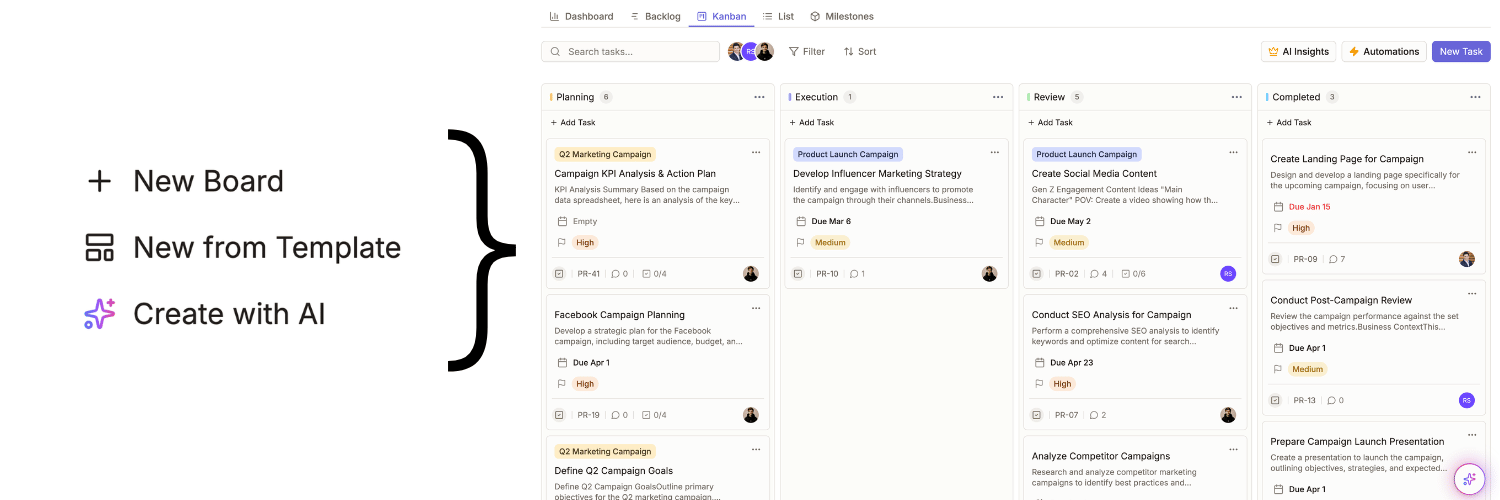
Click "+ New Board" in the sidebar → choose "Create with AI", "Template", or "Blank Board" → describe your project (for AI) or customize columns. You'll have a board in under a minute.
How to Create Your First Board
Creating your first board in Milestone takes under a minute. You can use AI to generate everything from a short description, pick a template, or start with a blank board. Here’s how each option works.
Prerequisites: You need access to a workspace. If you don’t see "+ New Board", you may need your workspace admin to grant you project creation permissions.
Create with AI (Recommended)
The fastest path: AI sets up columns, tasks, and workflows from one sentence.
- Click "+ New Board" in the left sidebar.
- Select "Create with AI".
- Describe your project (e.g., "Mobile app with design, development, and QA phases").
- Click Create AI generates the board in seconds.
- Edit anything you want before you start using it.
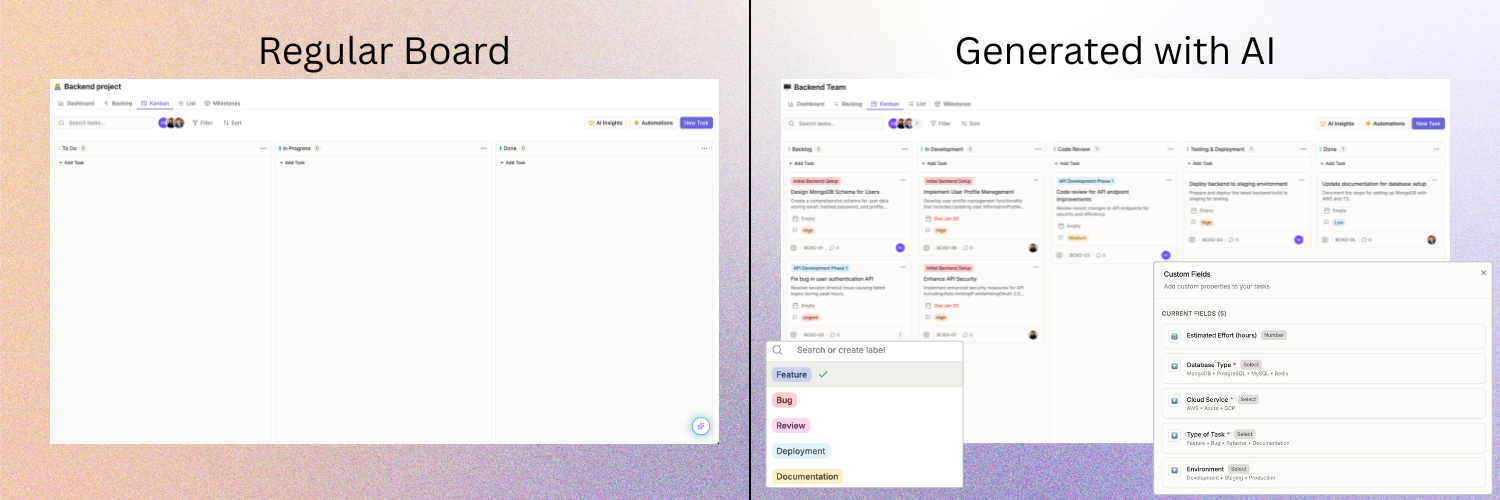
Pro tip: More detail = better structure. "E-commerce redesign: homepage, product pages, checkout, design mockups, frontend dev, QA" tends to work better than "website project."
Create from Template
Use a ready-made structure and tweak it.
- Click "+ New Board".
- Browse templates: Kanban, Scrum, Product Launch, etc.
- Select one → customize columns and add tasks.
Create from Scratch
Full control over structure:
- Click "+ New Board" → "Blank Board".
- Name your board.
- Click "+" next to columns to add stages (e.g., To Do, In Progress, Done).
- Add tasks by clicking "+ Add task" in any column.
What if something goes wrong?
| Issue | What to try |
|---|---|
| "+ New Board" is grayed out | Ask your workspace adminyou may need project creation permission. |
| AI returns an empty or odd board | Try a more specific prompt. Include phases and deliverables. |
| Template won’t load | Refresh the page. If it still fails, try a different browser or contact support. |
Tips for success
- Start with 3–4 columns; add more as you need them.
- Use labels to color-code tasks by priority or type.
- Add descriptions and due dates on tasks so the team stays aligned.
What’s next?
After your board exists: invite team members, set up automations, or connect GitHub for commit linking.